
Forza Horizon 6 Best Settings: PC, Controller and Wheel Setup Guide


Forza Horizon 6 looks incredible on PC, runs surprisingly well on handhelds and supports wheels, controllers and keyboard with deep customization. The trade-off is that the settings menu is huge and most defaults are conservative. The right tweaks recover free frames, sharpen feedback and unlock real driving comfort within minutes.
This guide covers the best PC graphics settings for three hardware tiers, the cleanest controller and wheel setups, plus driving aids, difficulty, audio, streamer mode and accessibility. Apply the priorities below in the order they appear and you will be racing faster and smoother in a single tuning session.
Key Takeaways
- Best general mode: use Performance Mode for racing and Quality Mode only when you care more about visuals than responsiveness.
- Best PC priority: lower Ray Tracing, Shadows, Volumetric Fog and Car LOD first if you need more FPS.
- Best upscaling choice: use DLSS on NVIDIA, FSR on AMD and XeSS on Intel, with Quality or Balanced depending on resolution.
- Best controller setup: keep inner deadzones low, outside deadzones high and adjust only if your controller has drift.
- Best wheel setup: use 900° steering, low deadzones and tune force feedback until the wheel feels controlled, not violent.
- Best driving aid change: switch from full racing line to braking line only once you want cleaner, faster racing lines.
How Settings Are Organized in Forza Horizon 6
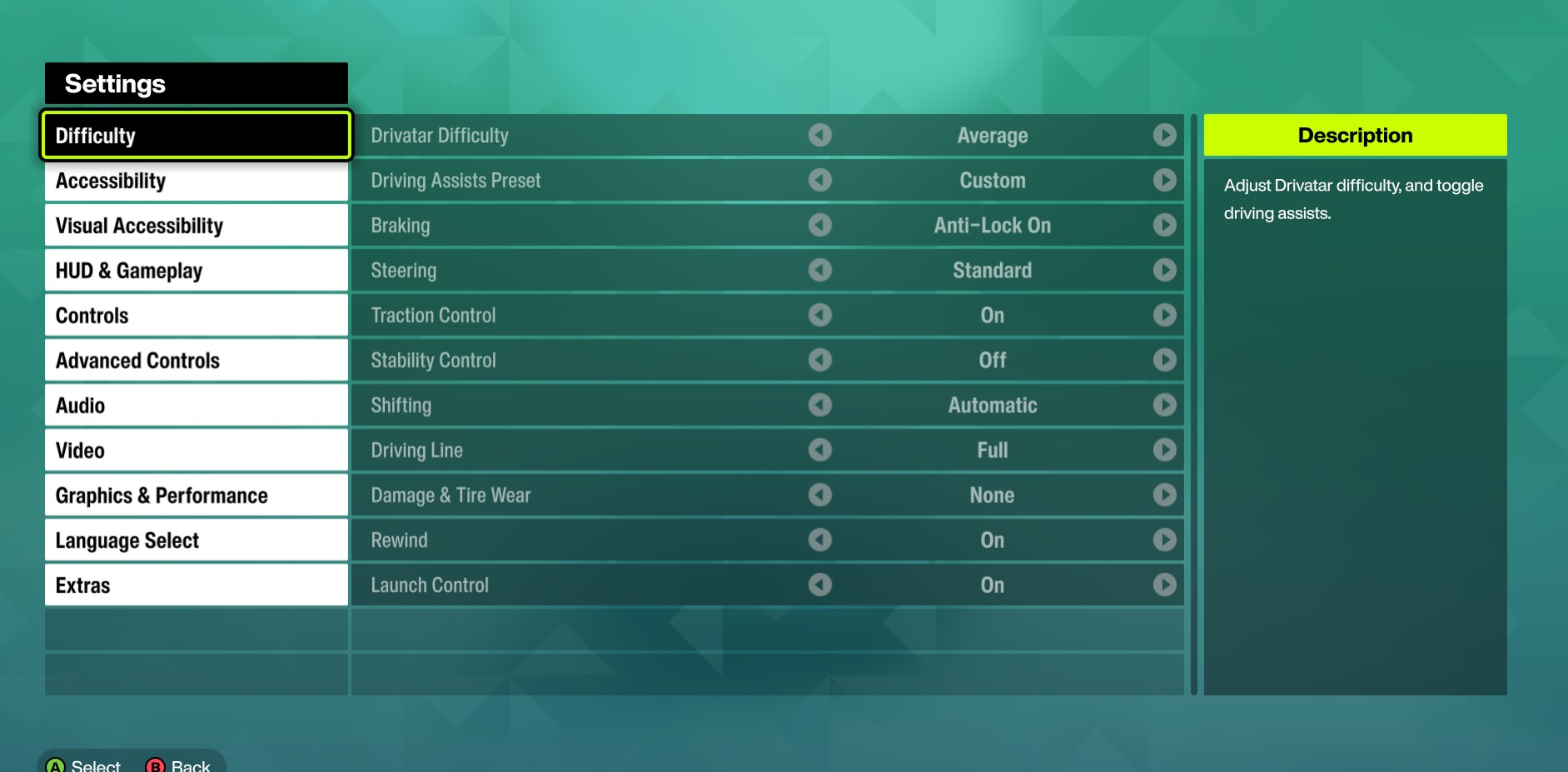
Before tweaking, it helps to know how the menu is structured. FH6 splits the settings into three main buckets: Video and Graphics, Audio and Streamer Mode, and Controls and Accessibility. Each bucket has its own pitfalls — for example, Motion Blur lives under both Visual Accessibility AND Video, so you have to disable it in two places.
Video and Graphics
This is the largest bucket on PC. You get a Performance vs Quality preset switch, plus granular controls for resolution, frame rate, V-Sync, upscaling (DLSS / FSR / XeSS), Ray Tracing, and 15+ individual graphics options. On console and handheld, the controls collapse to Performance Mode and Quality Mode picks.
Audio and Streamer Mode
Audio output, music balance, voice chat and the all-important Streamer Mode live here. Streamer Mode swaps the licensed soundtrack for royalty-free music so your stream or recording avoids copyright strikes. Turn it on before you hit record, never after.
Controls and Accessibility
Controller, wheel, keyboard and accessibility live in the same parent menu. Inside you get Advanced Controls (deadzones, sensitivity, vibration), Wheel (FFB, steering rotation, pedal calibration) and Visual Accessibility (colour blindness, Motion Blur, UI scaling). Every player should review accessibility once even if they do not have impairments.
Best Graphics Settings for PC
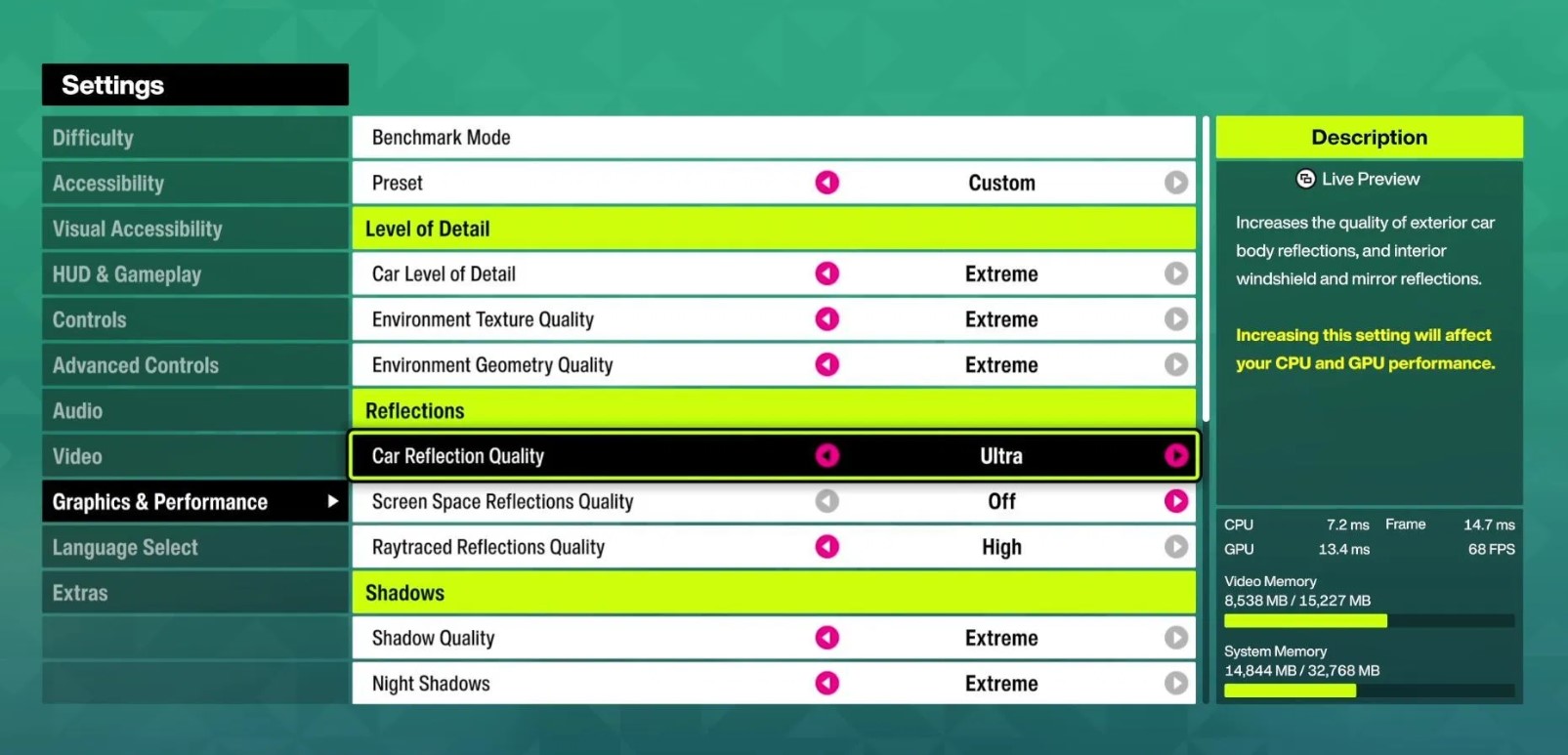
FH6 scales exceptionally well from handhelds to flagship GPUs. The cleanest path is to match your hardware tier first, then adjust upscaling and Ray Tracing to taste. The table below is the quick reference across three tiers.
| Category | High-End PC | Mid-Range PC | Handheld |
| Graphics Mode | Quality + RT | Performance | Performance |
| Resolution | 3840 x 2160 (4K) | 2560 x 1440 (1440p) | 1080p or native |
| Upscaling | DLSS Quality / DLAA | DLSS Balanced / FSR Quality | FSR Performance |
| Frame Rate | Unlocked + VRR | Cap at 60-83 FPS | 30-60 FPS target |
| Ray Tracing | RT GI High + RT Reflections Medium | RT GI Low or Off | Off |
| V-Sync | Off (use VRR) | On if no VRR | On |
| Motion Blur | Off or Short (preference) | Off | Off |
The full per-setting matrix below shows every major graphics option across the three tiers. Use it as the detailed reference when you want to set every value manually instead of relying on presets.
| Setting | High-End | Mid-Range | Handheld | Performance Cost |
| Car Level of Detail | Ultra | Ultra | High | Medium |
| Environment Texture Quality | Extreme | High | High | VRAM heavy |
| Environment Geometry Quality | Ultra | High | High | CPU bound |
| Car Reflection Quality | Ultra | High | High | Heavy |
| Screen Space Reflections | Extreme | Off (RT) / Extreme (no RT) | Off | None / Medium |
| Ray Traced Reflections | Medium | Off | Off | 15-20% FPS |
| Shadow Quality | Ultra | High | Low | 15% at Ultra |
| Night Shadows | Ultra | Medium | Off | Heavy |
| Screen Space GI | Off (RT GI on) | High | Medium | Heavy |
| Ray Traced GI | High | Low or Off | Off | 20% at High |
| Shader Quality | Ultra | Ultra | High | Scales |
| Deformable Terrain | Extreme | Extreme | Medium | None / Medium |
| Particle Effects | Ultra | High | Medium | Light |
| Volumetric Fog | Ultra | High | Medium | 10% at Ultra |
| Motion Blur | Off | Off | Off | None |
High-End PC
High-end builds (think RTX 4080 / 4090, RTX 5070 Ti and above, or RX 7900 XTX / RX 9070 XT style systems) can run FH6 at 4K with most settings on Ultra or Extreme. Ray Tracing is finally worth turning on at this tier, but keep Ray Traced Reflections at Medium because they remain the heaviest single setting in the game.
- Graphics preset: Ultra + RT (or Custom with RT GI High + RT Reflections Medium).
- Resolution: 4K native with DLSS Quality or DLAA for sharper image than native.
- Frame rate: unlocked with VRR enabled, V-Sync off.
- Settings to push: Car LOD Ultra, Volumetric Fog Ultra, Shader Quality Ultra, Particle Effects Ultra.
- Settings to keep moderate: RT Reflections Medium (not Ultra), Shadow Quality Ultra not Extreme.
Mid-Range PC
Mid-range builds (think RTX 3060 / 4060 / 5060, RX 6700 / 7600 class systems) hit a sweet spot at 1440p with DLSS Balanced. Ray Tracing should be kept low or off — the FPS hit is rarely worth the visual gain at this tier, especially in races where the camera moves fast.
- Graphics preset: High preset, then customize Ray Tracing off.
- Resolution: 1440p with DLSS Balanced or FSR Quality.
- Frame rate: cap at 60 or 83 FPS for consistent frame pacing.
- Settings to push: Car LOD Ultra, Shader Quality Ultra, Deformable Terrain Extreme (no cost).
- Settings to drop: RT Reflections off, RT GI off or Low, Night Shadows Medium.
Handheld and Console Notes
Handheld players on devices like the Xbox Ally X or Steam Deck get a surprisingly playable FH6 experience. Plugged in, the Ally X holds 50-60 FPS at medium-high settings; on battery it drops to 30 FPS but stays smooth. For Xbox consoles, the choice collapses to Performance Mode for racing and Quality Mode for cruising, screenshots or visual preference.
- Handheld preset: mix of Medium and High, Ray Tracing off, FSR Performance.
- Xbox Performance Mode: default for races, 60 FPS target, lower visual fidelity.
- Xbox Quality Mode: only for free-roam cruising, photo mode and visual showcase moments.
DLSS, FSR and Frame Generation
Upscaling is the single most impactful setting in FH6. Modern image reconstruction tech often looks cleaner than native resolution while delivering free FPS. Pick the right tech for your GPU and the right preset for your resolution.
| Resolution | DLSS (NVIDIA) | FSR (AMD) | XeSS (Intel) |
| 1080p | Quality | Quality | Quality |
| 1440p | Balanced | Quality | Balanced |
| 4K | Performance or Balanced | Performance | Performance |
| DLAA (overkill GPU) | On — sharpest image | — | — |
Note: DLSS can auto-disable if VRAM runs out, so 12GB cards should avoid maxing texture-heavy settings at 4K.
Frame Generation is the wildcard. Turn it on only if your base FPS stays above 60 in races. 2x Frame Generation is the safe pick. 4x is reserved for builds that already hit 90-100 FPS native — below that, input lag spikes and the game feels worse to drive even with higher FPS counters.
Per-Setting Recommendations
Beyond the hardware-tier tables, certain settings deserve their own decision tree. The four below are the ones that move the needle most on FPS, input feel and visual clarity.
Resolution, V-Sync and Frame Rate
Use native resolution always and rely on upscaling rather than lowering resolution. V-Sync should be off if you have VRR (G-Sync / FreeSync) enabled, and capped externally via RTSS or your GPU control panel for consistent frame pacing.
- Resolution: native (use upscaling to scale down internally).
- V-Sync: Off with VRR, On only if no VRR and you have headroom.
- Frame rate cap: external via RTSS or NVIDIA Control Panel, NOT in-game.
- Fullscreen: On (better performance, lower input lag than Borderless).
Pro Tip: If you want smoother frame pacing, cap FPS externally through RTSS or your GPU control panel instead of relying only on in-game limits.
Ray Tracing: On or Off
Ray Tracing in FH6 is split into RT Reflections and RT Global Illumination. RT GI is the bigger visual win and the bigger FPS hit at 20% on High. RT Reflections matter most in Tokyo's reflective buildings but eat 15-20% FPS for moments you barely see while racing.
- High-End: RT GI High + RT Reflections Medium — best balance.
- Mid-Range: RT GI Low or Off, RT Reflections Off.
- Handheld: Off entirely.
- If you must pick one: RT GI over RT Reflections — richer image, less visible cost during fast driving.
Important: Turn Ray Tracing off first if you get stutters or inconsistent frame pacing. It can look great, but racing feels better when frame time is stable.
Motion Blur, Lens Effects and Aesthetic Settings
Motion Blur is the one setting that splits players. Some love the speed sensation it adds; others hate the loss of clarity. FH6 has it in two separate places — Visual Accessibility AND Video — so you need to disable it in both if you want clean motion.
- Motion Blur: Off in both Visual Accessibility AND Video for racers; Short for cruisers who want speed feel.
- UI Motion Blur: Off (prevents nausea in menus).
- Lens Effects: Ultra — no real cost, looks great.
- Anti-Aliasing: Off (DLSS / FSR / XeSS handles it).
The Most Expensive Settings to Tweak First
If you are short on frames, drop these in order. The list below is sorted by FPS cost vs visual gain:
| Setting | FPS Cost | Recommendation | Visual Trade-off |
| Ray Traced GI | ~20% on High | Medium or Off | Loses richest lighting |
| Ray Traced Reflections | ~15-20% | Off or Low | Loses Tokyo building reflections |
| Shadow Quality | ~15% | High (not Ultra) | Soft instead of sharp shadows |
| Volumetric Fog | ~10% | High (not Ultra) | Slightly pixelated fog |
| Shader Quality | Scales with level | Ultra or High | Materials feel more plastic at Medium |
| Car LOD Extreme | Surprisingly heavy | Ultra (skip Extreme) | Minor visual gain over Ultra |
Pro Tip: Use the built-in benchmark after every major graphics change. Do not judge settings only from the garage or photo mode.
Best Controller Settings
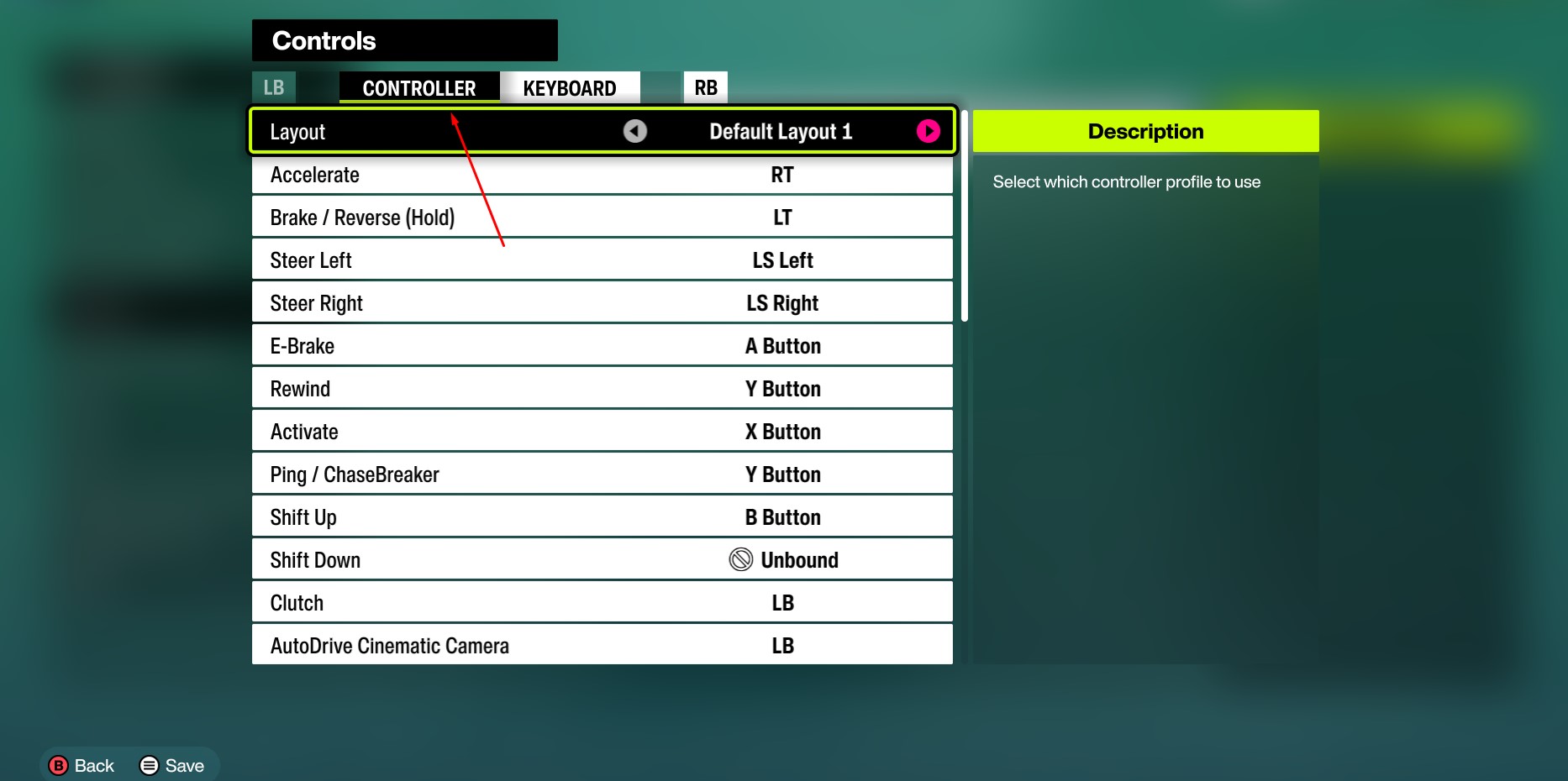
Controller players need tight inputs and predictable response curves more than they need vibration drama. The default deadzones are too wide for clean racing — most cars feel sluggish on small stick inputs. Tightening deadzones is the single biggest controller win in FH6.
Deadzones and Sensitivity
Set inner deadzones near zero and outer deadzones near maximum. This gives you immediate steering response and the full stick range without losing precision at the extremes. Adjust inner deadzone up only if you have stick drift.
- Steering Inner Deadzone: 0-5 (higher only if drift).
- Steering Outer Deadzone: 95-100.
- Acceleration Inner / Outer: 0 / 100.
- Brake Inner / Outer: 0 / 100.
- Steering Sensitivity: 50 (default, adjust to taste).
Vibration and Trigger Feedback
Vibration is a personal preference setting, not a performance setting. Many competitive players turn it off because it can distract during long sessions. Trigger feedback (on PS5 controllers) adds resistance to the throttle and brake triggers — useful for feel, but turn it down if it tires your hands on long drives.
- Vibration: On at 50-70% for casual play, Off for long races or sweaty sessions.
- Trigger Feedback: On for immersion (PS5), Off if hands get tired.
- Rumble Intensity: personal preference, default is fine for most.
Camera and FoV
FH6 lets you set FoV per camera view — bumper, hood, chase, cockpit. Wider FoV helps you read upcoming corners earlier but distorts car size and makes speed feel slower. Narrower FoV amplifies speed sensation but cuts peripheral awareness.
- Chase camera FoV: 80-90 for balanced view.
- Cockpit FoV: default to mid-range, raise if interior feels cramped.
- Bumper FoV: highest setting for max situational awareness in racing.
Best Wheel Settings
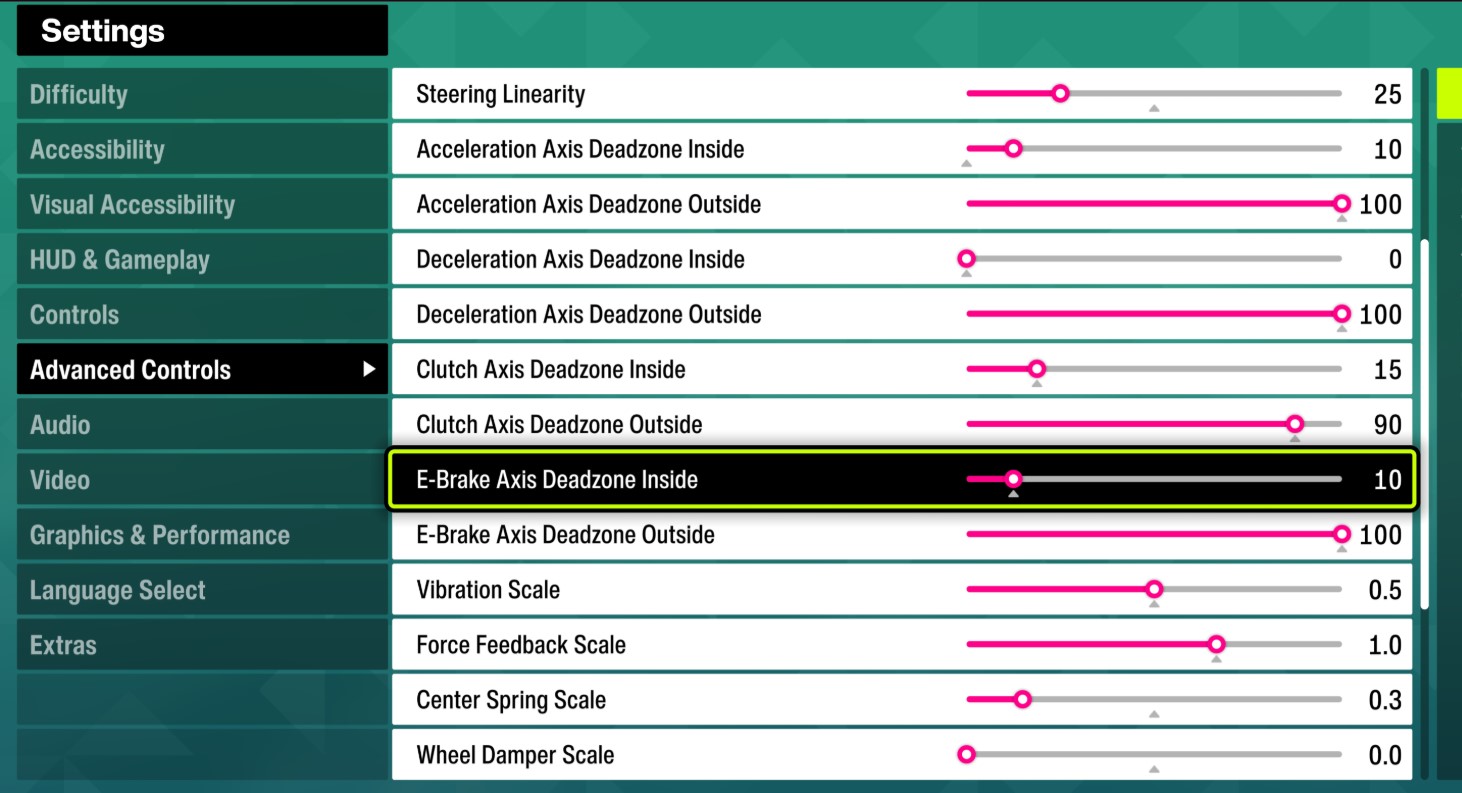
Wheel users get the deepest customization in FH6. The goal is a wheel that feels controlled, not violent — every kerb should communicate, but the wheel should never rip out of your hands on a small bump. Get the baseline below right before tweaking individual force feedback channels.
Steering Rotation and Force Feedback
Set steering rotation to 900° simulation for wheels that support it. This matches real road cars and gives you proper steering range for slow corners. Force Feedback should sit around 70-80% strength — the goal is feel without arm fatigue over a 1-hour session.
- Steering Rotation: 900° simulation (match your physical wheel).
- Force Feedback Strength: 70-80%, tune down if arms fatigue.
- Centering Spring: Off (FFB already handles this).
- Damping: 20-30% for road feel without sluggish response.
- Vibration: 30-50% for kerb and surface texture detail.
Pedal Calibration
Almost every wheel ships with pedals that need calibration before they feel right. Recalibrate inside FH6 the first time you connect the wheel, and re-check after firmware updates. Linear response is the cleanest pedal feel for racing.
- Throttle response: Linear.
- Brake response: Linear (most pedals).
- Brake travel: calibrate to 100% press for full braking force.
- Clutch (if equipped): Linear, enable manual transmission in Driving Aids.
900° Simulation Steering
Simulation steering at 900° is the realistic setting for road cars. It feels heavier and slower than the arcade default — initially the cars will feel sluggish on tight corners until your hand-over-hand technique adjusts. After 2-3 hours of practice, simulation steering becomes faster and more predictable than the arcade default because you can place the car more precisely.
- First hour: expect to over-correct and feel slow on hairpins.
- Hours 2-3: hand-over-hand becomes muscle memory.
- After that: lap times match or beat arcade steering, with more consistent corner exits.
The table below is the single-page cheat sheet covering both controller and wheel baselines. Print it, screenshot it, paste it on a second monitor — whatever helps.
| Setting | Controller | Wheel | Notes |
| Steering Inner Deadzone | 0-5 | 0 | Raise only if stick drift |
| Steering Outer Deadzone | 95-100 | 95-100 | Maximum range |
| Steering Sensitivity | 50 | Linear | Personal preference |
| Steering Rotation | N/A | 900° Simulation | Match physical wheel |
| Vibration | On 50-70% | N/A | Off for long sessions |
| Force Feedback | N/A | 70-80% | Controlled, not violent |
| Damping | N/A | 20-30% | Wheel feel, not sluggish |
| Brake / Throttle response | Linear | Linear | Calibrate pedals first |
Note: Settings improve comfort, but Driver Level controls Wheelspins and reward flow. If you want faster access to cars and credits, our Forza Horizon 6 driver leveling service pushes Driver Level fast.
Driving Aids and Difficulty Settings
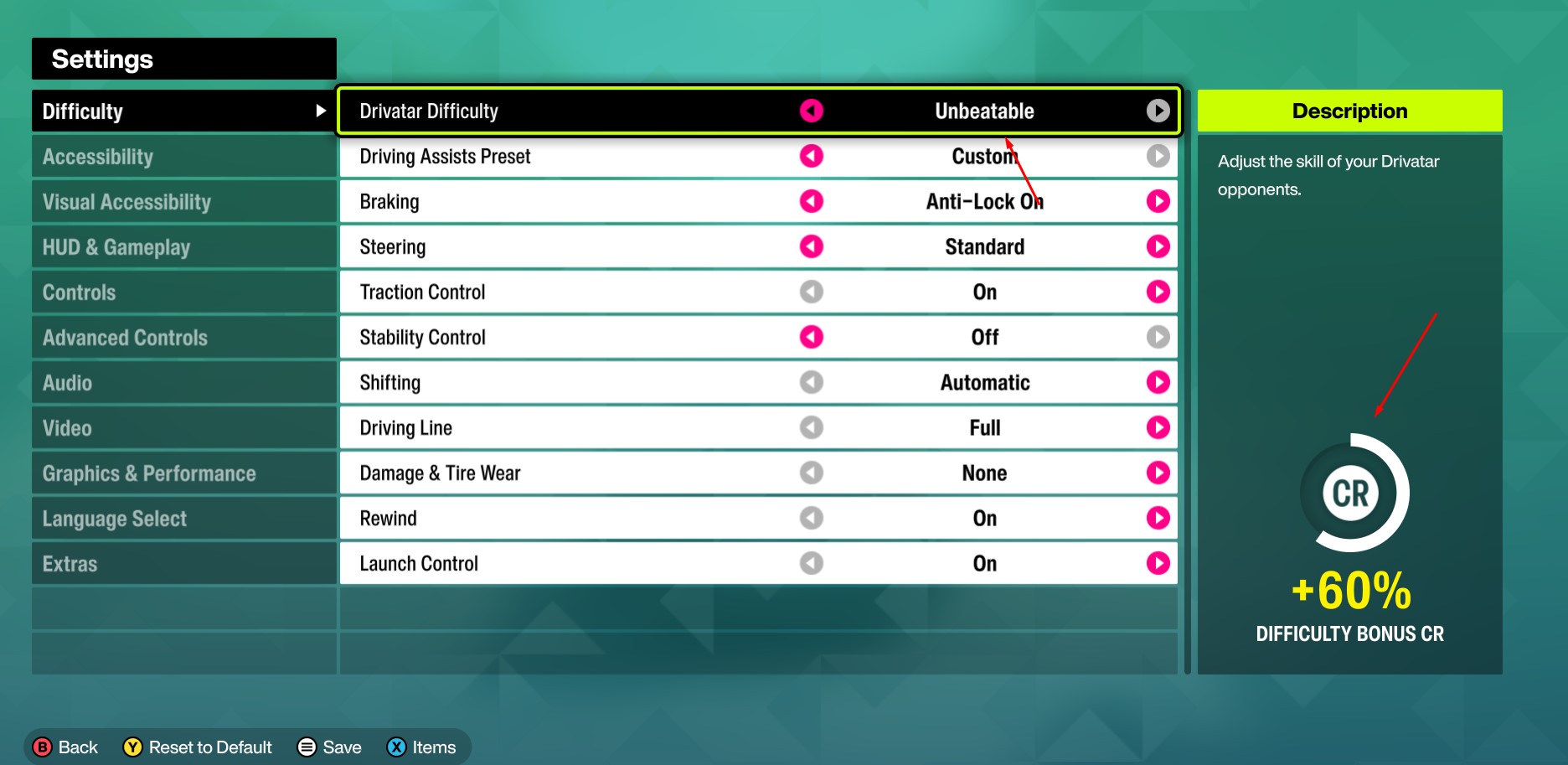
Driving Aids are the bridge between arcade and simulation in FH6. Beginners should leave them on; intermediate players should disable Stability Control and Traction Control first to learn car weight; experienced racers should also disable ABS and run manual transmission for the cleanest lap times.
9 Difficulty Levels Explained
FH6 has 9 difficulty levels from Tourist (totally new) to Unbeatable (maximum challenge). Higher difficulty pays more credits per race, but only if you win. Find the highest difficulty where you remain competitive — going above your skill level loses races, which pays zero.
| Difficulty | Player Profile | Credit Bonus |
| Tourist | New to racing games | Lowest |
| New Racer | New to Forza Horizon | Low |
| Novice | Relaxed with some challenge | Low |
| Average | Intended baseline | Baseline |
| Above Average | Slightly more challenging | + |
| Highly Skilled | Hard but not overly difficult | ++ |
| Expert | Challenging for most | +++ |
| Pro | Seasoned veterans | ++++ |
| Unbeatable | Maximum challenge | +++++ (if winning) |
Braking Line vs Full Racing Line
Full racing line is the FH6 default and the trap most players never escape. It draws an idealized line through every corner, which means you brake earlier than necessary and follow conservative arcs. Braking line only keeps the useful brake-zone information and removes the rest, freeing you to find faster lines naturally.
Pro Tip: Switch from full racing line to braking line only once you know the tracks. It keeps braking hints without forcing conservative driving lines.
Assists That Hurt You
Some assists make racing feel easier short-term but cap your real performance ceiling. The list below covers the most common ones, in order of which to disable first as you improve:
- Stability Control: disable first — it limits car rotation and kills drift potential.
- Traction Control: disable second — keeps power delivery realistic, lets you launch faster.
- ABS: disable third — opens up trail braking, the biggest lap-time finder.
- Automatic Transmission: switch to Manual or Manual with Clutch once comfortable — better corner exits.
- Rewind: off for competitive races — using it disables credit bonuses on the run.
- Launch Control: keep on for drag races, off for circuits where you only launch once.
If you want to climb leaderboards or grind race-win credit fast without manually disabling every assist, our Forza Horizon 6 races boost handles race progression and rewards end to end.
Audio, Streamer Mode and Accessibility
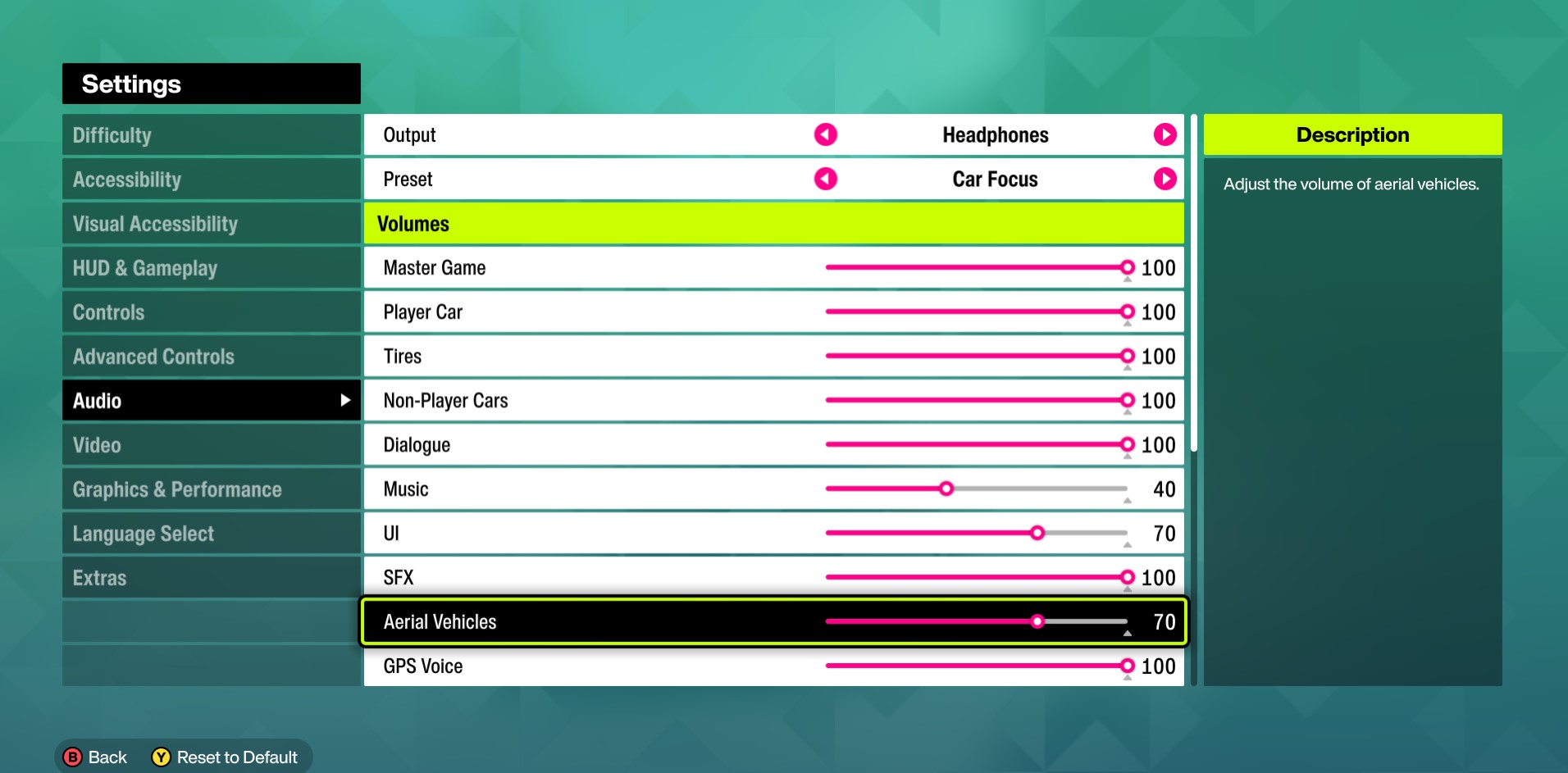
The settings most players skip — until they need them. Audio Output, Streamer Mode and Visual Accessibility live in different submenus and each one solves a real problem if you take 5 minutes to check them.
Audio Output Setup
Set the audio output to match your hardware — Headphones for headsets, Stereo Speakers for desk speakers, Surround for 5.1/7.1 setups. The wrong setting compresses the audio mix and you lose engine character and tire feedback. Music balance is preference, but most racers drop music to 30-40% so engine noise stays dominant.
- Output mode: Headphones / Stereo / Surround — match your hardware.
- Music volume: 30-40% during races, higher for free-roam.
- SFX volume: 100% — never lower car / tire / impact sounds.
- Voice chat: personal preference (turn on for crew races).
Streamer Mode for Recording
Streamer Mode replaces the licensed FH6 soundtrack with royalty-free music so streamers and content creators avoid copyright strikes on Twitch, YouTube and other platforms. Turn it on before you hit record — flipping it during a recording leaves clipped music in the early seconds.
Important: Turn Streamer Mode on before recording or streaming. It replaces copyrighted music with safer alternatives.
Visual Accessibility and Motion Blur
Visual Accessibility holds the first Motion Blur setting in the game (there is a second one under Video), plus colour blindness filters, UI scaling and high-contrast options. Even players without impairments benefit from turning Motion Blur off here — it prevents nausea on long sessions and sharpens speed perception.
- Motion Blur (Visual Accessibility): Off for clarity, Short if you want speed feel.
- UI Motion Blur: Off — prevents menu nausea.
- Colour Blindness Filter: Protanopia / Deuteranopia / Tritanopia as needed.
- User Interface Scale: 100% default; raise if reading at distance.
IMPROVE YOUR FH6 ADVENTURE NOW!
Forza Horizon 6 Best Settings FAQ
What are the best PC settings for high FPS?
Use Fullscreen, V-Sync off (with VRR), DLSS or FSR upscaling, Ray Tracing off or low, Shadow Quality High, Volumetric Fog High. Cap FPS externally via RTSS or GPU control panel for consistent frame pacing.
Should I turn Ray Tracing on in Forza Horizon 6?
Only on high-end GPUs. Ray Traced GI High and Ray Traced Reflections Medium is the cleanest balance. Mid-range and handheld players should leave it off — the FPS cost is rarely worth the visual gain during races.
Which upscaling tech should I use?
Use DLSS on NVIDIA GPUs, FSR on AMD GPUs, XeSS on Intel GPUs. Pick Quality preset for 1080p, Balanced for 1440p, Performance for 4K. DLAA is the sharpest option if your GPU is overkill for your resolution.
Should I use Frame Generation?
Only if your base FPS stays above 60. 2x Frame Generation is the safe option. 4x is reserved for systems that already hit 90-100 FPS native — below that, input lag spikes and racing feel suffers.
What are the best controller settings?
Set inner deadzones to 0-5, outer deadzones to 95-100, steering sensitivity 50. Raise inner deadzone only if you have stick drift. Vibration and trigger feedback are personal preference.
What are the best wheel settings?
Use 900° simulation steering, Force Feedback at 70-80%, Damping at 20-30%, Centering Spring off. Calibrate pedals first time you plug in the wheel. Linear response for throttle and brake.
How many difficulty levels does Forza Horizon 6 have?
FH6 has 9 difficulty levels from Tourist to Unbeatable. Higher difficulty pays more credits but only if you win — find the level where you stay competitive.
Should I use the full racing line?
No. Switch to braking line only once you know the tracks. Full racing line draws conservative arcs and forces early braking — braking line only keeps the useful brake-zone hint and lets you find faster lines.
What is Streamer Mode and should I turn it on?
Streamer Mode replaces licensed FH6 music with royalty-free alternatives to avoid copyright strikes on Twitch, YouTube and other platforms. Turn it on before recording or streaming.
Where are the Motion Blur settings?
FH6 has two Motion Blur settings — one under Visual Accessibility and one under Video. Disable both for the cleanest motion clarity. UI Motion Blur is a third setting that prevents menu nausea.
Do these settings work on Xbox and handheld?
Yes. On Xbox, use Performance Mode for racing and Quality Mode for cruising. Handheld devices like the Xbox Ally X run a mix of Medium and High presets with FSR Performance — 50-60 FPS plugged in, ~30 FPS on battery.
Final Thoughts
FH6's settings menu is deep, but the wins are concentrated in a small number of high-impact choices. Performance Mode for racing, the right upscaling tech for your GPU, tight controller deadzones, 900° wheel rotation, braking line only and disabling unnecessary assists will deliver 80% of the result with 20% of the effort.
Apply the priorities in this order: match your hardware tier first, dial in upscaling, disable Ray Tracing if frames are unstable, then move to controller or wheel comfort, then driving aids. Test in the built-in benchmark and in actual races — not in the garage or photo mode where everything looks fine.
Settings only get you so far. If you want to accelerate your Driver Level, unlock cars faster, dominate races or skip the grind entirely, our Forza Horizon 6 boosting services cover the full progression stack. Drop the busywork, keep the fun.