
Marathon Best Settings Guide: Video, Graphics, Controller and Audio Tweaks
Best Marathon Settings (Key Takeaways)
If you want the fastest possible setup, these are the first settings you should copy. They give you a clean image, stable FPS, and low input delay.
- Fullscreen + V-Sync Off
- Native Resolution
- FOV 90–100
- Frame Cap near your refresh rate, or slightly above it
- Motion Blur Off + Chromatic Aberration Off
- DLSS or FSR for performance, DLAA or Native AA for clarity
- NVIDIA Reflex On
- Character Detail Distance High + Foliage Detail Distance Lowest for competitive visibility
Introduction
Welcome to our Marathon best settings guide. The goal here is simple: help you get better performance, cleaner visibility, and more responsive controls without turning the game into a blurry mess.
We’ll start with the best video settings, then move into graphics settings for balanced play, maximum FPS, and maximum quality. After that, we’ll cover controller settings, audio settings, plus the system requirements and extra tweaks that help Marathon feel smoother in real fights.
Marathon Best Video Settings
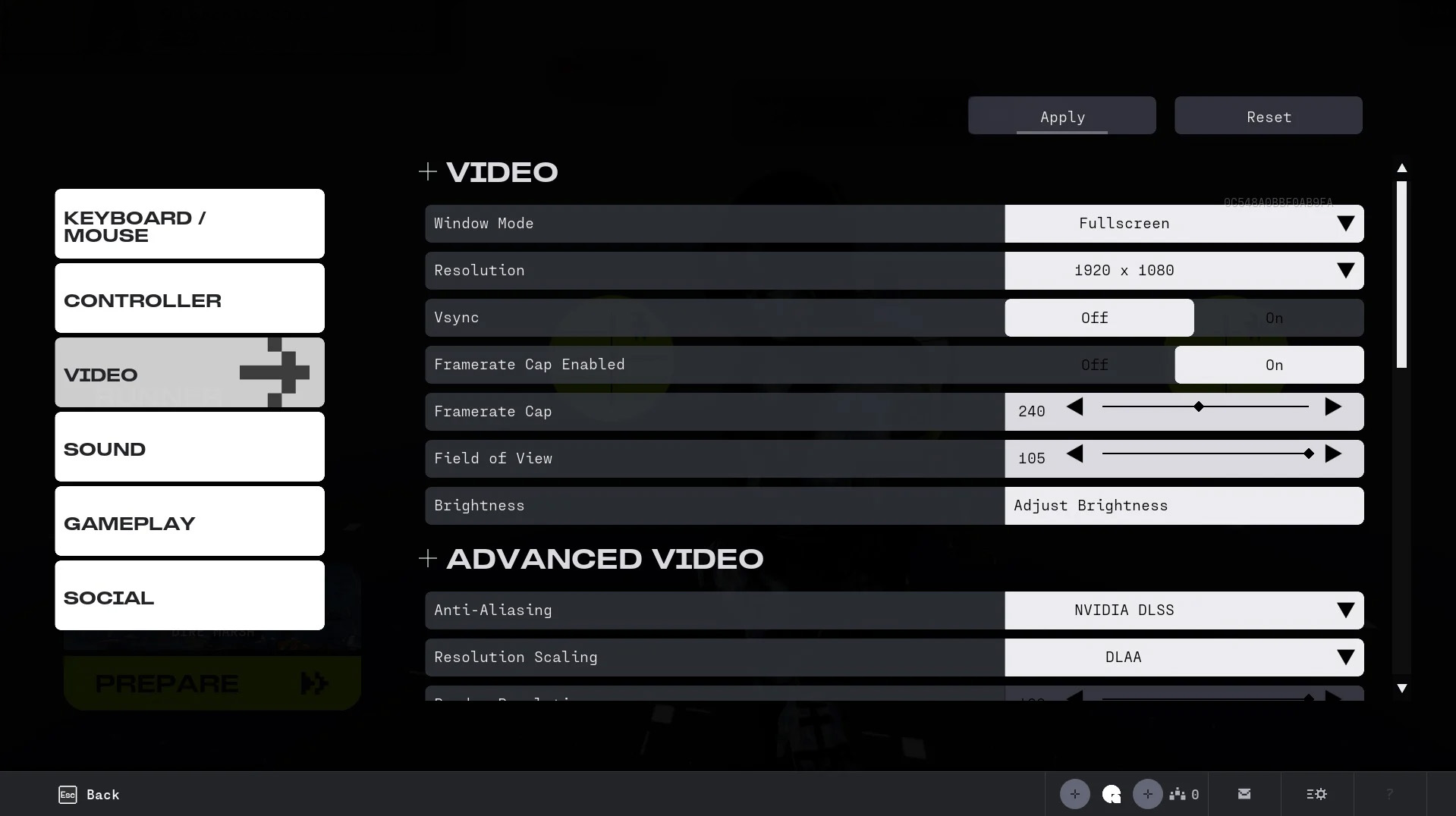
Video settings define how Marathon feels before you even touch the advanced graphics menu. The most important choices here are Fullscreen, Native Resolution, V-Sync Off, and a frame cap that keeps your frametimes under control.
| Setting | Value | Why? |
| Window Mode | Fullscreen | Best overall choice for performance and lower latency |
| Resolution | Native | Keeps the image sharp and avoids extra blur |
| V-Sync | Off | Reduces input delay, especially in fights |
| Framerate Cap Enabled | On | Helps stabilize frametimes and reduce spikes |
| Framerate Cap | Near your refresh rate or slightly above it | Keeps motion smooth without making frametimes messy |
| Field of View | 90–105 | Best balance between awareness and target visibility |
| Brightness | Preference | Keep it bright enough to read dark interiors without washing out the image |
Marathon Best Graphic Settings
The best Marathon graphics settings are not about maxing everything out. They are about clarity, consistency, and visibility at range. You want a sharp image, readable targets, and enough performance headroom to avoid stutters in heavy combat.
| Setting | Value | Why? |
| Graphics Quality | Custom | Lets you optimize each setting individually instead of relying on a preset |
| Anti-Aliasing | DLSS or FSR | Best overall balance for most players |
| Resolution Scaling | DLAA or Native AA on stronger PCs | Cleaner image if your system has enough headroom |
| Render Resolution | 100% | Best visibility and target clarity |
| Screen Space Ambient Occlusion | High | Adds depth without hurting clarity too much |
| Anisotropic Filtering | 16x | Sharpens surfaces at angles with very little FPS cost |
| Texture Quality | VRAM dependent | Use Low on 6GB, Medium on 8GB, High or Highest on 12GB+ |
| Shadow Quality | High | Good visual depth without the heavier cost of maxed shadows |
| Environment Detail Distance | Medium | Helps performance in denser zones |
| Character Detail Distance | High | Keeps enemies clearer at longer distances |
| Foliage Detail Distance | Lowest | Better visibility and a noticeable FPS boost |
| Light Shafts | Medium or Off | Purely visual, reduce if you want a cleaner image |
| Motion Blur | Off | Cleaner tracking in fast gunfights |
| Chromatic Aberration | Off | Removes lens distortion and makes the image cleaner |
| NVIDIA Reflex | On | Improves input responsiveness on NVIDIA GPUs |
| UI Refresh Rate | High | Keeps HUD elements smoother in effect heavy fights |
Marathon Best Settings for Maximum FPS
This setup is for players who want the cleanest competitive setup on weaker or mid-range hardware. The focus is on low foliage, controlled texture usage, and keeping enemy models readable.
| Setting | Value | Why? |
| Graphics Quality | Custom | Best way to keep the important settings while cutting the waste |
| Anti-Aliasing | DLSS or FSR | Best first step for extra FPS |
| Resolution Scaling | Balanced | Big performance gain with acceptable image quality |
| Render Resolution | Slightly below 100% only if needed | Lower only as a last resort because visibility drops fast |
| Screen Space Ambient Occlusion | High | Still looks good without becoming too expensive |
| Anisotropic Filtering | 16x | Cheap and keeps surfaces readable |
| Texture Quality | Medium | Good compromise if you are hitting VRAM limits |
| Shadow Quality | Medium | Stable and readable without overloading the GPU |
| Environment Detail Distance | Low | Improves performance in dense outdoor spaces |
| Character Detail Distance | High | Important for spotting enemies at range |
| Foliage Detail Distance | Lowest | Huge FPS boost and less cover clutter |
| Light Shafts | Off | Removes extra glare |
| Motion Blur | Off | Always better for clarity |
| Chromatic Aberration | Off | Keeps edges clean |
| NVIDIA Reflex | On + Boost | Best latency option for performance focused setups |
| UI Refresh Rate | High | Smoother HUD during heavy action |
Marathon Best Settings for Maximum Quality
If your PC has room to spare, this preset keeps Marathon looking sharp and premium while still avoiding the effects that actively hurt visibility in fights.
| Setting | Value | Why? |
| Graphics Quality | High or Custom | Strong visual baseline without wasting performance |
| Anti-Aliasing | DLAA | Very clean image on stronger systems |
| Resolution Scaling | DLAA or Native AA | Best sharpness if you do not need extra FPS |
| Render Resolution | 100% | Maximum clarity |
| Screen Space Ambient Occlusion | High | Good scene depth and contact shadows |
| Anisotropic Filtering | 16x | Excellent clarity on terrain and hard surfaces |
| Texture Quality | High or Highest | Best environmental and weapon detail if VRAM allows it |
| Shadow Quality | High | Looks strong without the worst performance hit |
| Environment Detail Distance | High | More world detail at range |
| Character Detail Distance | High | Keeps enemy silhouettes strong far away |
| Foliage Detail Distance | Medium or High | Better visuals if you do not need the competitive foliage cut |
| Light Shafts | Medium | Keeps atmosphere without too much glare |
| Motion Blur | Off | Still the cleanest option even on a quality preset |
| Chromatic Aberration | Off | Sharper and cleaner image |
| NVIDIA Reflex | On | Good responsiveness even in a quality build |
| UI Refresh Rate | High | Prevents HUD sluggishness in busy scenes |
Marathon Best Controller Settings
If you play Marathon on controller, you want stable aim, predictable ADS behavior, and as little stick interference as possible. These settings are the best starting point for a cleaner, more responsive feel.
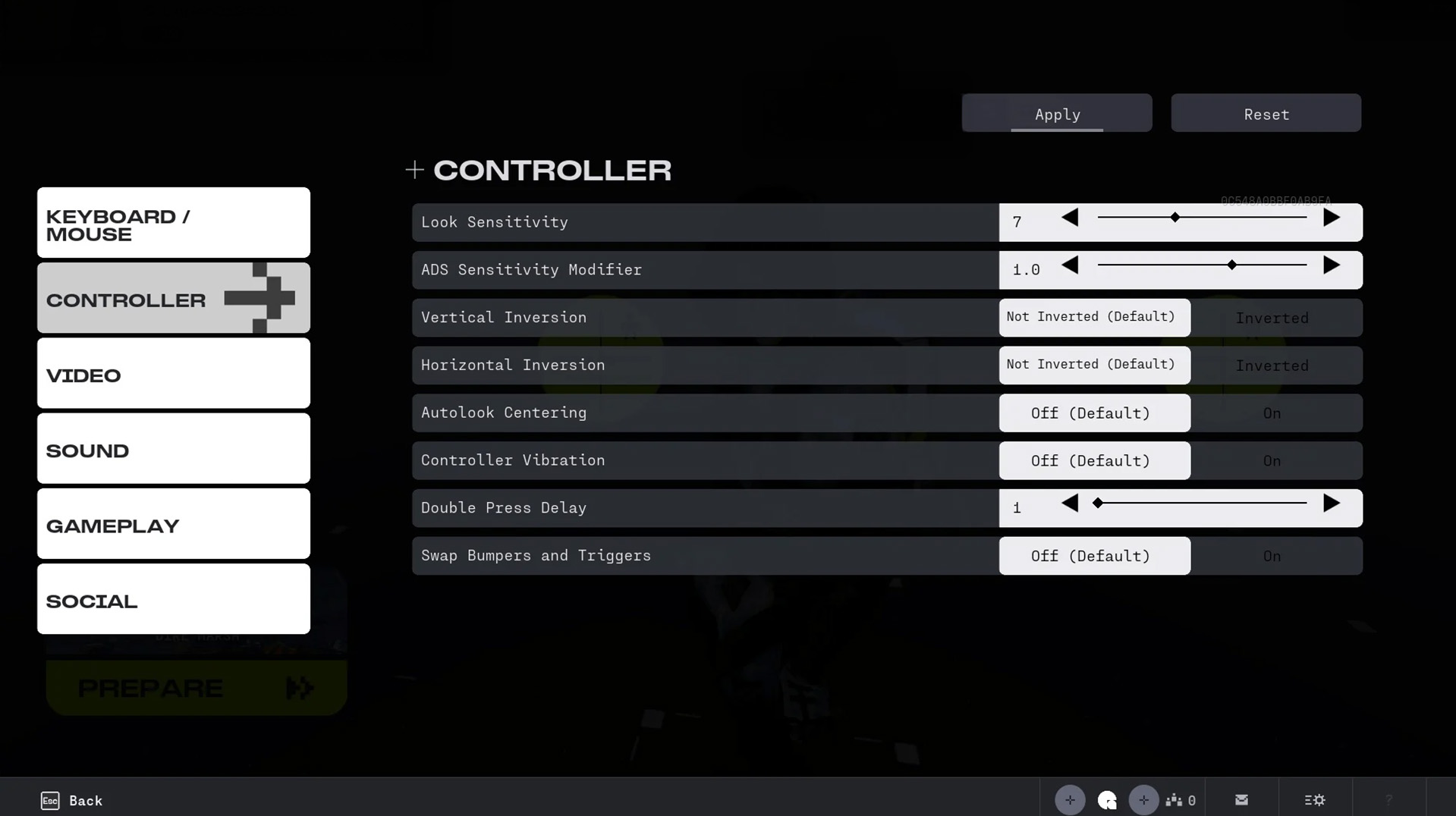
| Setting | Value | Why? |
| Look Sensitivity | 5–7 | Good range for turning speed without sacrificing control |
| ADS Sensitivity Modifier | 1.0 | Keeps hip fire and ADS muscle memory aligned |
| Aim Response Curve | Linear | More direct and predictable stick input |
| Axial / Radial Dead Zone | 0.5 | Low enough for fine adjustments, high enough to avoid drift |
| Vertical Inversion | Not Inverted | Standard look controls |
| Horizontal Inversion | Not Inverted | Standard left and right control |
| Autolook Centering | Off | Stops the camera from fighting your input |
| Controller Vibration | Off | Less distraction and better precision in fights |
| Double Press Delay | Default | Safe and reliable timing for movement and ability inputs |
| Swap Bumpers and Triggers | Off | Keep default layout unless you already prefer a swapped setup |
Marathon Best Audio Settings
Audio is a huge part of surviving in Marathon. Footsteps, reloads, ability sounds, and nearby fights all matter, so the goal here is to keep the important cues loud while pushing music down.
| Setting | Value | Effect |
| Lobby Music | 0 | No menu noise, cleaner focus |
| Gameplay Music | 2 | Keeps atmosphere without masking cues |
| SFX Volume | 8 | Best category for footsteps, reloads, and fight information |
| Dialogue Volume | 6 | Clear enough without overpowering SFX |
| Chat Volume | 5 | Comfortable comms without drowning the game mix |
| Mute When Not Focused | Preference | Turn it on if you alt-tab often and do not want game sound in the background |
Extra Tips for Better Visibility
Once your game runs smoothly, visibility becomes the next priority. In Marathon, the player who spots first often shoots first, and that is often enough to win the fight.
- Keep Motion Blur and Chromatic Aberration off.
- Keep Render Resolution at 100% whenever possible.
- Use Character Detail Distance High so runners stay easier to spot.
- Use Foliage Detail Distance Lowest if you want the strongest competitive visibility.
- Do not overdo FOV. 90–100 is the safest range for awareness without shrinking targets too much.
Marathon System Requirements
Before raising settings, make sure your system actually has enough headroom. Marathon is well optimized, but stable competitive play still benefits a lot from 16GB RAM, solid VRAM, and an SSD install.
Minimum System Requirements
| Component | Minimum Requirement |
| OS | Windows 10 64-bit |
| CPU | Intel Core i5-6600 AMD Ryzen 5 2600 |
| RAM | 8GB |
| GPU | NVIDIA GeForce GTX 1050 Ti 4GB AMD Radeon RX 5500 XT 4GB Intel Arc A580 8GB with ReBAR on |
| DirectX | Version 12 |
| Storage | 17GB |
Recommended System Requirements
| Component | Recommended Requirement |
| OS | Windows 10 64-bit |
| CPU | Intel Core i5-10400 AMD Ryzen 5 3600 |
| RAM | 16GB |
| GPU | NVIDIA GeForce RTX 2060 6GB AMD Radeon RX 5700 XT 8GB Intel Arc A770 16GB with ReBAR on |
| DirectX | Version 12 |
| Storage | 17GB |
Tip: Even if your system meets minimum specs, an SSD and 16GB RAM make a real difference in stability.
Marathon General Settings Tips for All Players
These extra tweaks often matter just as much as your in-game options. They help reduce stutters, clean up background load, and keep your inputs more consistent.
- Install Marathon on an SSD.
- Keep your GPU drivers updated.
- Close background apps, overlays, and heavy browser tabs before playing.
- Set Windows to a High Performance or equivalent power plan if needed.
- Use NVIDIA Reflex or AMD Anti-Lag when available.
- Watch your CPU and GPU temperatures if performance keeps dropping during longer sessions.
- Use Push-to-Talk if you want cleaner comms and less noise.
- Monitor FPS and frametime with in-game tools or MSI Afterburner.
UPGRADE YOUR LOADOUT FAST!
Final thoughts
Marathon feels best when you build around clarity, stable frametimes, and low latency. Start with the video baseline, adjust graphics for your hardware, then fine-tune only the settings that actually affect what you see and feel in fights.
Once your setup is locked in, you stop fighting your PC and start focusing on what matters: taking cleaner duels, reacting faster, and extracting with more value.
Marathon Best Settings Guide - F.A.Q.
What are the best settings for Marathon on low-end PCs?
Use Fullscreen, keep V-Sync Off, turn Motion Blur and Chromatic Aberration off, lower Environment Detail Distance, and set Foliage Detail Distance to Lowest. Use DLSS or FSR Balanced if you need more FPS.
Does Marathon support NVIDIA DLSS or AMD FSR?
Yes. Marathon supports DLSS and FSR. Stronger systems can also use DLAA or Native AA for a cleaner image.
How do I reduce input lag in Marathon?
Turn V-Sync Off, use Fullscreen, enable NVIDIA Reflex if you have an NVIDIA GPU, and keep your FPS stable instead of letting it fluctuate wildly.
What’s the best FOV setting in Marathon?
90–100 is the best range for most players. It improves awareness without making targets too small.
Should I disable Motion Blur in Marathon?
Yes. Motion Blur Off gives you a cleaner image and better target tracking.
Does Marathon support voice chat and Push-to-Talk on PC?
Yes. Marathon supports in-game voice options, and if you have audio issues you should make sure your preferred playback and recording devices are set as both Default and Communications Device in Windows.
Is mouse aim assist enabled by default in Marathon?
Mouse Magnetism is something many players check right away. If you want the cleanest mouse input possible, verify its state in the Keyboard and Mouse menu and disable it if needed.
Do I need an SSD to play Marathon?
It is not strictly required, but an SSD is strongly recommended for smoother loading and better overall responsiveness.
About KBoosting
Thank you for reading our Marathon best settings guide. If you want to push your progress further beyond optimized settings, KBoosting offers extra ways to save time and stay efficient. Check our Marathon boost services to progress faster, refine your loadouts, and skip unnecessary grinding.